
Panopto in Canvas
One time Setup (Instructors)
From the Canvas course, click the Panopto link on the navigation sidebar on the left. This will create a folder for your course and link your Panopto to Canvas if you are a new user. The Panopto link does not need to be visible to students in Canvas to perform that step.
Launching from the Rich Content Editor
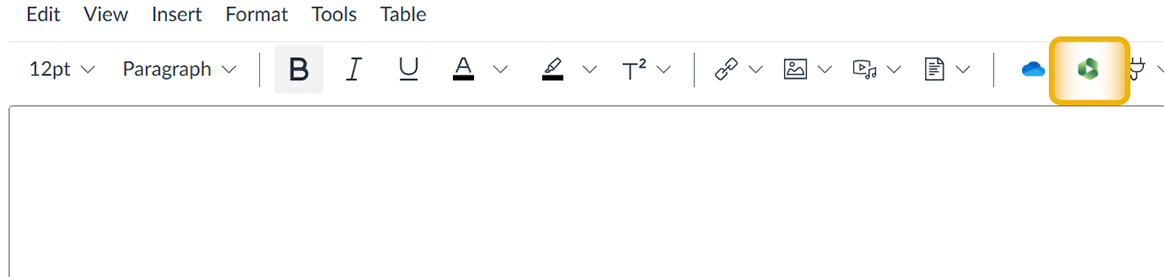
From anywhere that has the Rich Content Editor, select the Panopto button.
To record a new video, go to the Record section on the right.
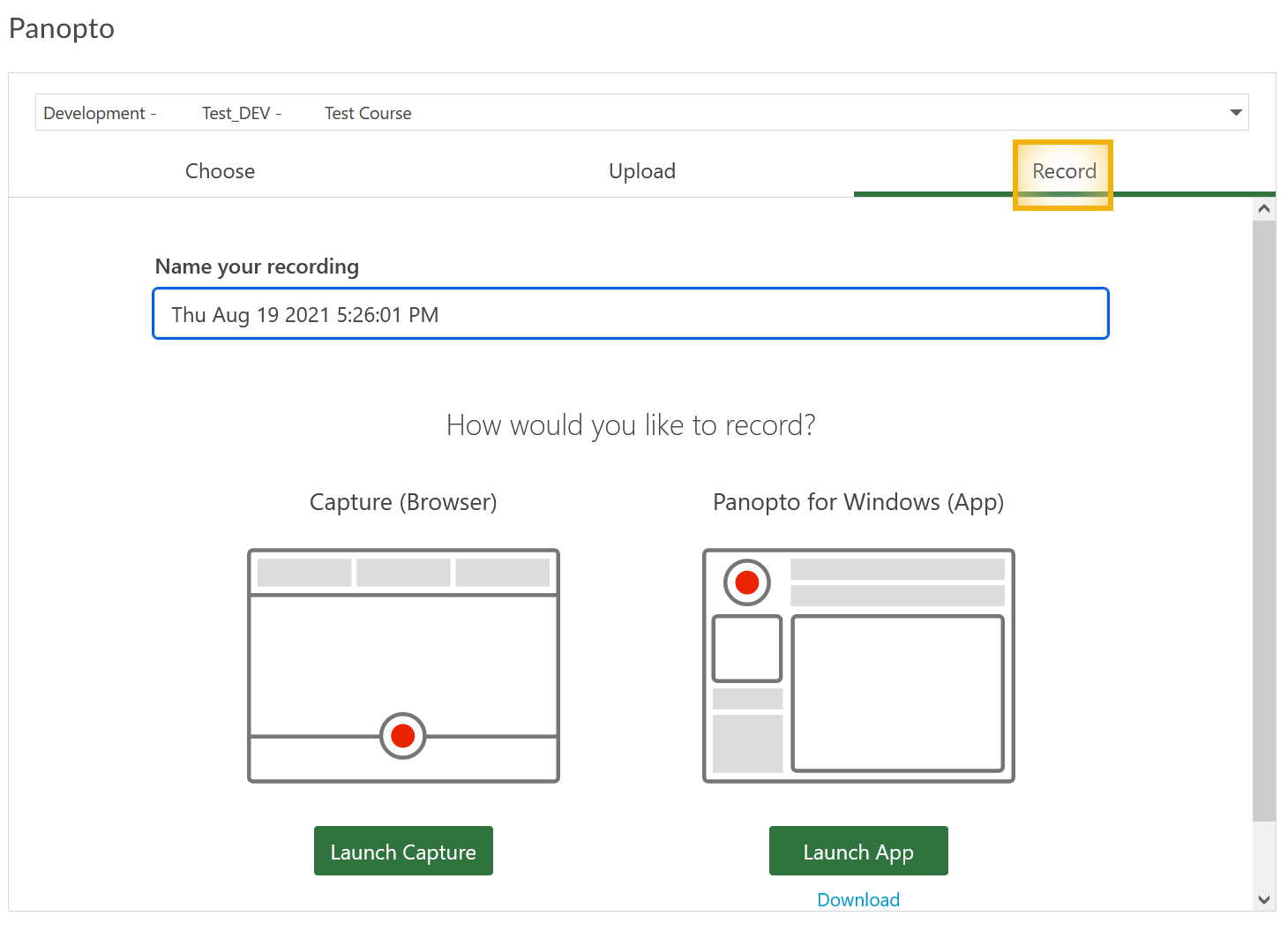
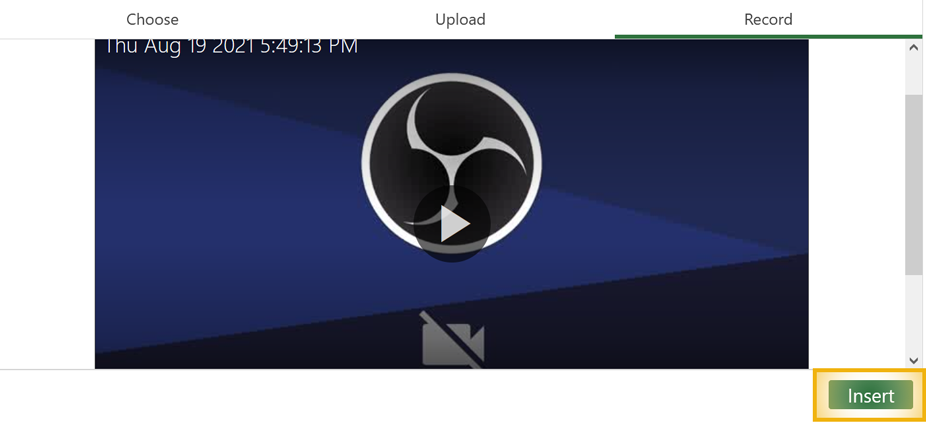
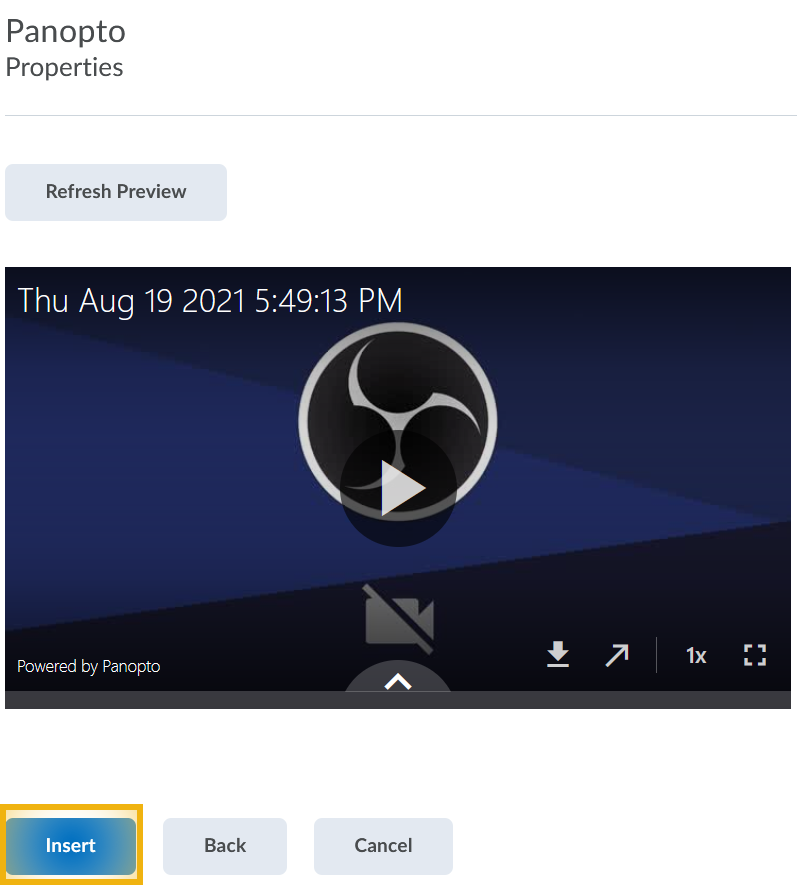
To record directly in your browser, choose Launch Capture. If you have pop-ups blocked by default, you will need to allow them for msub.hosted.panopto.com. Allow the page to access your camera and microphone if prompted. Once recording is finished and it has completely processed, switch back to the Canvas browser tab to see a preview of your video. Click Insert. On the following screen, choose Insert again.
To record in a separate desktop application, choose Download to first install the app. Once loaded, you can choose Launch App from then on to open Panopto and start recording. Your video will show on the open Canvas tab when recording is finished and it is done processing. For more information on using the desktop app, check out the Panopto support page here.
Panopto Quizzes in Canvas
You'll find the steps for adding an assessed Panopto video quiz in the knowledge article here.