
How do I add an external RSS feed to an announcement as an instructor?
Open Announcements
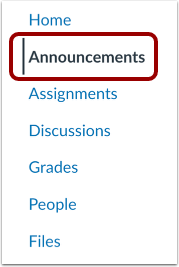
In Course Navigation, click the Announcements link.
Open External Feeds

Click the External Feeds link.
Add External Feed
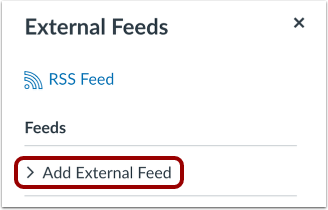
Click the Add External Feed link.
Enter Feed URL
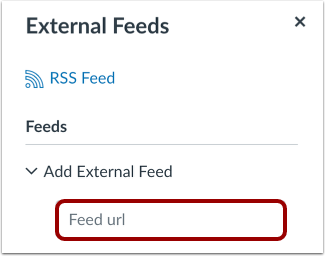
In the Feed URL field, paste the feed URL. All new entries from that RSS feed will be added to Announcements.
Select Content to Post
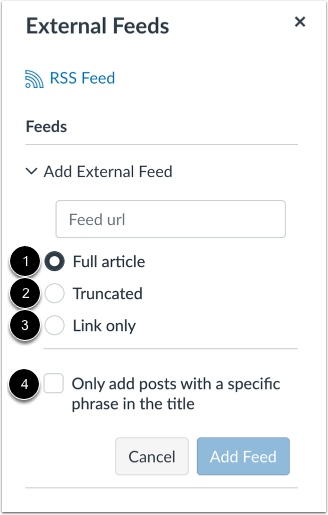
You can select the content that users can view in Announcements.
To view the entire article, click the Full article option [1].
To view a shortened version of the article, click the Truncated option [2].
To view a link to the selected article, click the Link only option [3].
You can also choose to add only posts with a specific phrase in the title. Click the Only add posts with a specific phrase in the title checkbox [4] and type keywords or phrases in the text box.
Add Feed
Click the Add Feed button.
View External Feeds
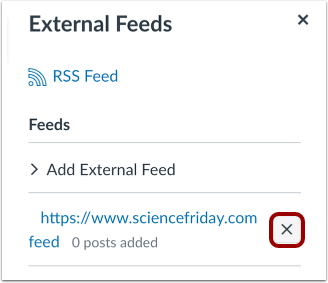
View the external feed in the feed list. If you want to delete the external feed, click the Remove icon.
Note: You will have to wait until a new post is published in the external RSS feed before you can see it in the Announcement feed.
Infomation presented in this guide is from The Instructure Community Product Resources.